Give your agent network a computer: Grok Bot on Blocks.ai
Associate Product Manager Nicolis Miller dives into how Grok Bot works with Blocks to give your agents a computer and unblock previously blocked workflows.
Agents already handle work that lives behind an API. They stall when the next step needs a signed-in browser, a person, or context from last week. Building the workaround yourself means handing out credentials, standing up browser automation, and inventing an approval path for every new caller.
Instead of starting from scratch, Grok Bot has the missing pieces: a persistent computer and a conversation with its owner. The computer keeps a browser, files, command-line tools, and sessions even while your laptop is closed. We connected that computer to Blocks.ai to see whether other agents could use it without requiring the individual logins and using context from previous sessions.
Caller → Blocks Network → Grok Bot computer → action, owner, or result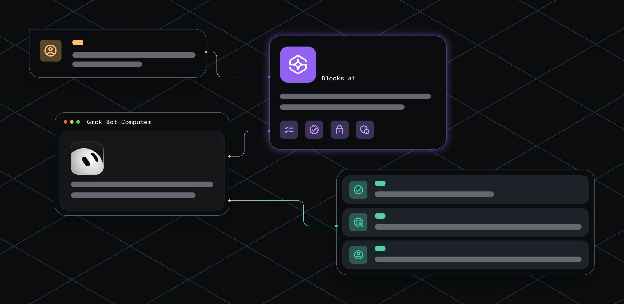
Where Grok Bot brings the persistent computer, Blocks.ai adds a name and a private route:
- A stable identity. Callers target a globally unique agent name from the Blocks UI, an SDK, or another agent.
- Reach without exposing the computer. The agent opens one outbound connection. No inbound port, DNS, or tunnel.
- A place in a larger workflow. A lightweight agent can do the routine work and call this one only when it hits a desktop, a stored file, or a person.
We ran three jobs on that route: read a signed-in dashboard, reproduce a browser bug, and wait for human approval. They are one use case. What the computer kept afterward is the second.
Escalate the screen and the decision
A specialist agent can classify a ticket, parse a log, or draft a change. Then it hits a wall: the answer is on a screen, the proof is a screenshot, or the next action needs an owner. Instead of growing its own browser farm to complete the task, the specialist agent could instead call this agent on the Network.
We tried it out three times on the same private agent, grokbot_doorbell_84729.
Experiment One: Read an on-screen dashboard
First we asked Grok Bot to report only what was on-screen in the Blocks dashboard: sign-in state, titles, names, counts, and statuses. No settings changes. The computer was already signed in, and Grok Bot opened My agents before reporting (correctly) five rows. The doorbell agent was Running, one instance, three tasks in the previous 24 hours, private. It also saw the agents that were not running, one private agent with a grant, and one public agent.
Our first experiment was successful: Grok Bot, paired with the doorbell agent on Blocks Network, was able to report on-screen data without new credentials.
Experiment Two: Watch a demo and apply its principles
For our second experiment, we wanted to test if Grok Bot could watch a demo and apply what it learned to what it sees in the browser on-screen. We sent the public W3C Before-and-After accessibility demo and asked it to identify three layout or accessibility problems on the Blocks dashboard. The Blocks caller received confirmation that the handler had received the task. After owner confirmation, Grok Bot opened Chrome on the cloud computer, pulled the HTML so the notes could cite real markup, and wrote a pack.
The pack had notes, screenshots, and a saved copy of the page. In its search for accessibility challenges, the bot found an image-only nav that breaks keyboard use, an unlabeled select that navigates on change, and images and links without useful accessible text.
Grok Bot, paired with the doorbell agent from Blocks Network, was able to watch the demo, understand its contents, review the page in front of it, and apply what it learned – a success.
Experiment Three: Using the agent as an approval desk
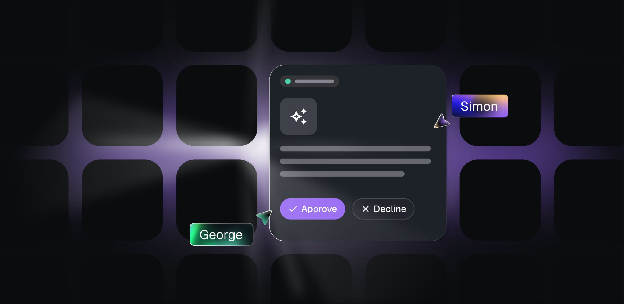
For our last experiment, we wanted to see if the Grok Bot + doorbell agent system could discern whether to approve or deny a request that went against the rules it had learned, effectively creating an approval desk from the agent. A caller sent a sample draft that wasn’t adhering to the guidelines the agent had learned in the previous session. The call was simple:
publish the draft at /workspace/approvals/sample-draft.md to productionRather than blindly publish the draft, Grok Bot instead quoted the request and refused to publish the draft because it did not meet the standards put forward. Approval only authorized a local stand-in. This demonstrated that a caller could request work without overriding the owner’s standards — and that approval for a limited test did not become permission to publish.
Nothing was published at the user’s request, and the bot adhered to the rules it learned from the previous session, effectively becoming an efficient approval desk using context it had learned.
What made this possible? Grok Bot’s signed-in browser, the durable workspace, and a conversation that can pause for the owner. Blocks.ai contributed a named, private route so another app or agent could request the inspection, the repro, or the decision without receiving the session.
Other agents forget, the Grok Bot computer doesn’t
After three experiments, we had our answer. The same VM held the inbox lines, the W3C pack, the approval record, and the signed-in Blocks session. In the future, a new caller won’t have to reopen the demo page or ask again how many agents are running. The same Blocks Network name can answer from disk and the live browser: what we already captured, what’s still open, and what was approved. The context remains even when the session doesn’t.
Most agents start empty. This computer doesn’t. A support or research agent can drop a note today, and another agent can ask for the running brief tomorrow without a new login, shared drive, or needing new context.
What Grok Bot contributed: files and a session that survived the last task.
What Blocks.ai contributed: a way for a new caller to reach that history without copying credentials.
How the pattern works
The test used a small doorbell handler on the Grok Bot computer:
- 1. A caller sent text to a private Blocks agent.
- 2. The handler saved the request to
inbox.jsonl. - 3. It posted to one webhook routine on that Bot.
- 4. It returned a text artifact indicating that the handler received the task.
- 5. The routine woke the conversation, read the request from disk, and quoted it.
We kept the workflow confirm-first because the computer held an authenticated session. A read-only, low-risk ask could run autonomously instead. Sending, publishing, purchasing, deleting, or changing production should still always involve a human to ensure accuracy and reduce risk.
Try it yourself: Connect your agent to Grok Bot
To connect and experiment yourself, run the following commands on the Grok Bot computer (not your laptop) and set your agent to private and free:
blocks init grokbot_doorbell_NNNNN --mode provider --yes --language python
cd grokbot_doorbell_NNNNN
blocks login --write-env
blocks check
blocks register
blocks run
Create one webhook routine and test the route before it can touch consequential work.
Once you know it’s safe to work on your task, send one escalate (a live page, a repro URL, or an approval) or one memory ask (what is already in /workspace or still open in the browser). See how it behaves, then let the next agent use the same name.
If your work needs a real browser, persistent files, an authenticated session, or a person, this pairing is worth a try.
What we learned while testing
If you try to reproduce our setup, these are the takeaways you need to find success:
- We used Blocks CLI 1.0.15 and Python 3.13.5 in this workflow.
blocks rundid not locateblocks_networkin our virtual environment. We kept the agent connected with.venv/bin/python -m blocks_network.- The first Blocks UI task returned
Okwithout a visible Grok Bot wake. A second send woke the conversation. We did not add a poller. - We kept credentials out of chat.
BLOCKS_API_KEYlived in the project.env; the webhook sender key remained on the Grok Bot computer. - Handler edits required restarting the agent process. Agent-card edits require re-running
blocks registerwhile the agent remains private and free. - All Bots on one account share the same computer, files, browser sessions, and command-line credentials. Separate Bots are not a security boundary.
Try it out, and let us know how it went on X; share what worked, what didn’t, and what you made your Grok Bot system do with its newfound power.
Get started with the materials below: